Announcing general availability of Storage Service Encryption for Azure File Storage

Today, we are excited to announce the general availability of Storage Service Encryption for Azure Files Storage.

Azure File Storage is a fully managed service providing distributed and cross platform storage. IT organizations can lift and shift on premises file shares to the cloud using Azure Files, by simply pointing the applications to Azure file share path. Thus, enterprises can start leveraging cloud without having to incur development costs to adopt cloud storage. Azure Files Storage is now the first fully managed file service offering encryption of data at rest.

This capability is one of the features most requested by enterprise customers looking to protect sensitive data as part of their regulatory or compliance needs (HIPAA and BAA compliant). Azure customers already benefit from Storage Service Encryption for Azure Blob Storage. Encryption support for Azure Tables and Queues will be coming by June.

Microsoft handles all the encryption, decryption and key management in a fully transparent fashion. All data is encrypted using 256-bit AES encryption, also known as AES-256, one of the strongest block ciphers available. Customers can enable this feature on all available redundancy types of Azure File Storage – LRS and GRS. There is no additional charge for enabling this feature. 

You can enable this feature on any Azure Resource Manager storage account using the Azure Portal, Azure Powershell, Azure CLI or the Microsoft Azure Storage Resource Provider API.

Find out more about Storage Service Encryption with Service Managed Keys.
Quelle: Azure

Azure CLI 2.0: new commands, features; available now in Azure Cloud Shell

As announced previously on this blog, we continue to make constant progress in adding new features to and stabilizing Azure CLI 2.0 over last several months.

At Microsoft Build 2017, we announced new functionality available in Azure CLI 2.0 through these new or significantly enhanced command modules – appservices, cdn, cognitive services, cosmosdb, data lake analytics and store, dev/test labs, functions, monitor, mysql, postgres, service fabric client, vsts.

Some of these changes include new syntax and modified names for existing CLI commands. You can continue to use the previous CLI commands for another couple of releases, but we will deprecate these after that and you will need to start using the new commands. Our recommendation is that you should switch to the new commands as soon as possible. We added a deprecation warning to the commands that we will remove in coming releases (all of them are currently in "preview" release mode).

New Installers

Over the past 2-3 months, we have seen increased engagement from our customers and new developers in Azure CLI 2.0 which is very encouraging. Although most of the feedback has been positive so far, there are a couple of areas where the experience hasn’t been optimal. Install issues, especially on Windows, have been an oft-cited complaint from many of our early adopters. Based on this, we are now releasing a MSI installer for Azure CLI 2.0 for Windows. This will take the complexity of having the correct versions of Python and other dependencies installed in the correct folders, which will also help with future upgrades and uninstall scenarios of Azure CLI. For Mac and Linux, we already have Curl, Apt-Get, PIP installers available that make the install experience seamless. Please see the updated install page for detailed instructions on how to install or upgrade to latest versions of Azure CLI 2.0.

We plan on releasing more native installers for other supported platforms in coming months.

Interactive mode and Azure Cloud Shell

In early April, we announced a separate, stand-alone install to run Azure CLI 2.0 in interactive mode. Based on feedback from customers, we are now merging this functionality directly into Azure CLI 2.0, so that you don’t need a separate install to run Azure CLI 2.0 in interactive mode. You can now launch the CLI into interactive mode by simply running the "interactive" command.

az interactive

After this, Azure CLI 2.0 runs within its own interactive shell which provides command dropdowns, auto-cached suggestions, combined with on-the-fly documentation, including examples of how each command is used. Interactive mode is really useful when learning Azure CLI 2.0’s capabilities, command structures and output formats. It is optimized for single command executions (as opposed to running automation scripts).

You can exit out of the interactive mode by running "quit" within this mode.

In addition to running Azure CLI on your own client machine, you can also run it in Azure Cloud Shell directly from Azure Management Portal. Azure Cloud Shell is a browser-based shell experience maintained by Microsoft to manage Azure resources. Cloud Shell comes installed with popular command-line tools and attaches an Azure file share to persist storage across sessions. This allows you to run CLI 2.0 commands directly in the browser using the login credentials with which you are logged on to in the Azure Management Portal. This is really useful when you don’t have ready access to your own machine with all of the necessary client side tools for Azure installed.

For running Azure CLI 2.0 in your own Bash or command.exe environment on your client machines, you can still install Azure CLI 2.0 using all the install mechanisms discussed above.

This latest release of Azure CLI 2.0 also comes up with many performance improvements. You should see significantly reduced times for many commonly used commands and usage scenarios. This is an area that we are constantly working on and trying to improve. So, if you are experiencing non-optimal experience in running your commands or automation scripts, we are interested in hearing from you and in learning more about your usage scenarios, patterns and configurations. Please feel free to email us directly at azfeedback@microsoft.com. You can also use the "az feedback" command directly from within the CLI to send us your feedback.

New commands for App Services, MySQL and Azure Functions

Azure CLI 2.0 gives you full management capability to create and manage your app services on Azure. Your web apps are created inside an app service plan which defines the resources (locations, number of workers) and the SKU (based on the billing plan chosen) for your hosted applications. Within an app service plan, you can create multiple web apps and manage them (start, stop, update).

Azure now also provides fully managed services for running MySQL and PostgreSQL databases on the cloud. And you can use the Azure CLI 2.0 to configure and manage these as well. Here are some Azure CLI 2.0 commands that you can use to deploy a PHP website with MySQL to Azure:

Create MySQL database on Azure and use it in your web app locally

First create a MySQL database and an associated firewall rule in your Azure subscription.

# login to your Azure account from the Azure CLI
az login

# select the Azure subscription you want to use in your account
az account set –-subscription “My Demos”

# create a new resource group in your subscription (or skip this step if
# using an existing resource group)
az group create –-location westus2 –-name MyResourceGroup

# create a new server in Azure MySQL database within the selected resource
# group
az mysql server create –-name MySQLServer –-resource-group MyResourceGroup `
–location westus2 –-user AdminUser –-password AdminPassword

# create a new firewall rule for your MySQL database to allow client
# connections
az mysql server firewall-rule create –-name MyFirewallRule –-server `
MySQLServer –-resource-group MyResourceGroup –-start-ip-address 0.0.0.0 `
–end-ip-address 255.255.255.255

Now you can connect to this MySQL server from your command window using the admin username and password specified above while creating the server. Once connected, use MySQL commands to create a new database and a new database user in the MySQL server. You can then configure your PHP web app to use this new database running on Azure MySQL by updating the connection string and database username and password that you specified while creating the database. Your app running on local machine should be able to connect to this database on Azure MySQL at this point.

Host your web app on Azure along with the MySQL database

Then create an Azure App Service and a Web App inside it and set it up to take source updates from your local GIT repository.

# create new app service plan in the selected resource group
az appservice plan create –-name MyAppSvcPlan –-resource-group `
MyResourceGroup –-sku FREE

# create a new web app in the above app service plan, set PHP runtime version
# and configure for local Git deployment (all in one simple command)
az webapp create -g MyResourceGroup -n MyWebApp –plan MyAppSvcPlan –runtime "php|7.0" –deployment-local-git

# set the deployment user for the web app to deploy it from your local
# machine using Git
az webapp deployment user set –-user-name LocalGitUser –-password `
LocalUserPassword

Set up the Azure web app to work with the local Azure MySQL database.

# update the web app config settings to use MySQL database
az webapp config appsettings update –-name MyWebApp –-resource-group `
MyResourceGroup –-settings DB_HOST=MySQLServer.windows.net `
DB_DATABASE=”sampledb” DB_USERNAME=”dbuser@MySQLServer” `
DB_PASSWORD=”dbuser_password”

Now you can update your PHP web app to connect to this MySql database by updating the .env and database.php files. Generate a new application key and save it into your .env settings of the PHP app.

# update app-key with generated application key for your web app on Azure
az webapp config appsettings update –-name MyWebApp –-resource-group `
MyResourceGroup –-settings APP_KEY=”generated app key” APP_DEBUG=”true”

After this you can use GIT commands (GIT remote and GIT push) to push your web app to Azure and have it deployed. Your web app is now ready and running on Azure.

Look at this article for step-by-step instructions on how to deploy a PHP website with MySQL to Azure App Services.

You can use other CLI commands to change app service plan, scale the web app, start or stop the web app etc.

Create Azure Functions using Azure CLI 2.0

Azure Functions is a solution for easily running small pieces of code, or “functions”, in the cloud. You can write just the code you want to run in many different languages that are supported and deploy it to Azure without worrying about the application or infrastructure needed to host and run it. Azure CLI 2.0 makes it easy to deploy and manage this code through the command line.

To create and deploy a piece code to Azure Functions, you can use this simple but powerful command:

az functionapp create -g MyFunctionRG1 -n myfunction -s myfuncstg -c westus2 –u https://github.com/mygithubact/azure-func-test.git

In the above command, you define the name for your new function app, specify the resource group and storage account along with the consumption plan you want to create it in. Finally, you can also point directly to your GIT based repository where you have your source code for the function app. The function is created and the source code from your GIT repo is deployed in a single step.

Once this is done, your function is ready to run. Go to Azure management portal, get the URL to the function and you can directly run that URL in a browser or a client side app to see the results of the function code.

Simple yet powerful – that’s what Azure CLI 2.0 is. It provides smart defaults, asks for minimum number of parameters to run the commands, does multiple steps in the background but also provides you full power of controlling what happens with many options and other parameters you can set.

Start using Azure CLI 2.0 today!

Whether you are an existing CLI user, or you are starting a new Azure project, it’s easy to get started with the CLI directly, or in the Azure Cloud Shell. Learn and master the command line with our updated docs and samples.

Azure CLI 2.0 is open source and on GitHub.

In the next few months, we’ll provide more updates. As ever, we want your ongoing feedback! Customers using the commands, that are now in GA release, in production can contact Azure Support for any issues, reach out via StackOverflow using the azure-cli tag, or email us directly at azfeedback@microsoft.com. You can also use the "az feedback" command directly from within the CLI to send us your feedback.
Quelle: Azure

Build and certify your PowerApps, Flow & Logic Apps Connector

We are excited to announce that as an application or service owner, you can now develop connectors that allow your app to work with Microsoft Flow, Logic Apps and PowerApps. This enables your customers to easily automate their business processes and create their own no-code line of business apps.

An API connector is an Open API (Swagger) based wrapper around a REST API that allows the underlying service to talk to Microsoft Flow, PowerApps, and Logic Apps. It provides a way for users to connect their accounts and leverage a set of pre-built triggers and actions to build their apps and workflows.

By being a part of our growing connector family (currently at 125+), you can enable a wide range of business and productivity scenarios for your users. This post provides an overview of what connectors can do, why you should build a connector and how to get started!

What can a connector do?

Developing a single connector enables an integration for three different Microsoft products – Flow, PowerApps, and Logic Apps.

Flow

Using Flow, your customers can automate tasks and build workflows in conjunction with other social and business applications. The possible workflows span across a wide variety of possibilities, for example:

Send email, text and push notifications
Copy files between data sources
Automatically collect and organize business data
Streamline approvals and send instant alerts

Logic Apps

Logic Apps is the workflow engine that powers Flow. It enables pro-developers to visually or programmatically configure workflows in Azure. A connector in Logic Apps can enable your customers to Automate EAI, Business to business (B2B) and Business to consumer (B2C) scenarios while reaping the benefits of source control, testing, support, and operations.

PowerApps

PowerApps enables users to build cloud connected and cross platform business apps using clicks and no code.

Using PowerApps, your customers can build simple apps for line of business scenarios that read and write data to multiple cloud sources. Some examples of such apps include survey forms, timesheets, expense reporting, etc. Users can securely publish and share these apps to the web or mobile for use within their organization.

Why should you build a connector?

As stated above, building a connector offers extensibility of your app through PowerApps and automation and integration through Flow and Logic Apps. The same connector can drive more usage of your service and your existing API without additional development.

Drive more usage

Increase reach, discoverability and usage of your service by publishing pre-defined task specific templates that integrate your app with our growing family of connectors.

The Flow and PowerApps gallery of connectors and templates make it easy for your users to get started. Embedding of the Flow experience within your app enables users to leverage pre-built templates from right within your application.

Expand the reach of your API

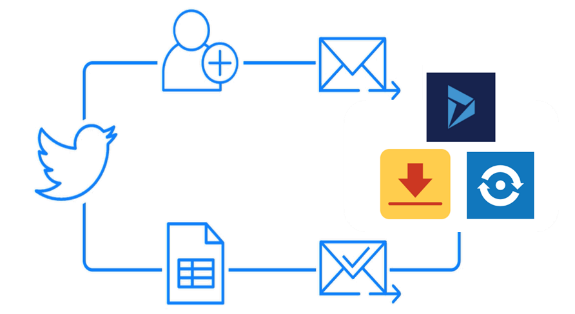
Enable power users to leverage your APIs and extend your solution without having to write code. Using simple clicks, a business user can create and share a multitude of solutions like the one shown below, for organizational or personal use.

How to get started

To build and submit an API connector, your app must fit the following criteria:

Business user scenario that fits well with Flow, PowerApps and Logic Apps
Publicly available service with stable REST APIs

Build a custom connector

The first step to building an API Connector is to build a fully functional Custom Connector within Flow or PowerApps. An API Connector is nothing more than a Custom Connector that is visible to all users of PowerApps and Flow.

The general process to build a connector involves multiple steps:

Learn more about how to develop a custom connector.

Submit for certification

As part of our 3rd party certification process, Microsoft will review the connector before publishing. This process validates the functionality of your connector, and checks for technical and content compliance as well as scenario fit.

If your application is built on azure, every user of Office 365 Enterprise Plans will get instant access to the connector for your app.

Learn more about the process to submit your custom connector for publishing.

To build a connector for your SaaS offering, sign up today. Learn more about how to grow your SaaS business with Azure.
Quelle: Azure

Introducing Video Indexer, a cloud service to unlock insights from your videos

The amount of video on the internet is growing exponentially and will continue to grow for the foreseeable future. And the growth is across multiple industries, such as entertainment, broadcasting, enterprises, public safety and others. Most videos only have a title and a description as metadata associated with the videos. But a video is a lot more than what the title and description typically capture (especially when the video is more than a minute long). The lack of human understandable time-stamped metadata makes discoverability of videos, and the relevant moments within a video, a challenging task. Generating such metadata for videos is expensive and humanly impossible when you have lots of videos. This is where artificial intelligence technologies can help. At Build 2017, we are announcing the public preview of a cloud service called Video Indexer as part of Microsoft Cognitive Services. Video Indexer enables customers with digital video and audio content to automatically extract metadata and use it to build intelligent innovative applications. Video Indexer is built using Azure Media Services, Microsoft Cognitive Services, Azure Search, Azure Storage and Azure Document DB. It brings the best of Microsoft AI technologies for video, in the form of a scalable cloud service for customers. Video Indexer has been built based on feedback from customers on the Microsoft Garage project called Video Breakdown, which was launched in September 2016. Customers across multiple industries have experimented with Video Breakdown. The following quote from Jonathan Huberman, CEO, Ooyala is a testament of the value of Video Indexer – “As a global provider of video monetization software and services, we are constantly looking for technologies that would help us provide more value to our customers. With Azure and Microsoft’s AI technologies for processing video we were really impressed with the combination of easy to use yet powerful AI services for videos. The integrations we have built between Video Indexer and our products will help our customers enhance content discovery and captioning as well as deliver targeted advertising based on the extracted metadata – a win-win for our customers and their viewers.” You don’t need to have any background in machine learning or computer vision to use Video Indexer. You can even get started without writing a single line of code. Video Indexer offers simple but powerful APIs and puts the power of AI technologies for video within the reach of every developer. You can learn more about this in the Video Indexer documentation. In what follows, let’s look at some of the customer use cases enabled by Video Indexer, followed by a high level description of features. Customer use cases Search – Insights extracted from the video can be used to enhance the search experience across a video library. For example, indexing spoken words and faces can enable the search experience of finding moments in a video where a particular person spoke certain words or when two people were seen together. Search based on such insights from videos is applicable to news agencies, educational institutes, broadcasters, entertainment content owners, enterprise LOB apps and in general to any industry that has a video library that users need to search against. Monetization – Video Indexer can help improve the value of videos. As an example, industries that rely on ad revenue (e.g. news media, social media, etc.), can deliver more relevant ads by using the extracted insights as additional signals to the ad server (presenting a sports shoe ad is more relevant in the middle of a football match vs. a swimming competition). User engagement – Video insights can be used to improve user engagement by positioning the relevant video moments to users. As an example, consider an educational video that explains spheres for the first 30 minutes and pyramids in the next 30 minutes. A student reading about pyramids would benefit more if the video is positioned starting from the 30 minute marker. Functionality At a high level, REST APIs includes the following functionalities. For more details, please take a look at the Video Indexer documentation.   Content upload – You can upload videos by providing a URL. Video Indexer starts processing videos as soon as they are uploaded. Multiple AI technologies are used to extract insights across multiple dimensions (spoken words, faces, visual text, objects, etc.) Insights download – Once a video finishes processing, you can download the extracted insights in the form of a JSON file. Search – You can submit search queries for searching for relevant moments within a video or for moments across all videos in your Video Indexer account. Player widget – You can obtain a player widget for a video, that you can embed in any web application. Player widget would enable you to stream the video using adaptive bit rate. Insights widget – You can also obtain an insights widget for showcasing the extracted insights. Just like the player widget, an insights widget can be embedded in any web application. You can also choose which parts of the insights widget you want to show and which you want to hide.   The Video Indexer portal enables you to Upload videos from a local machine. View the insights extracted from the video in a UI built using the various widgets mentioned above. Curate the insights and submit that back to the service. This would include providing names for faces that have been detected but not recognized, making corrections in text extracted based on spoken words or based on optical character recognition. Obtain an embed code for the player or insights widget. Video Indexer includes the following video AI technologies. Each technology listed below is applied to every video that is uploaded to Video Indexer. Audio Transcription – Video Indexer has speech-to-text functionality which enables customers to get a transcript of the spoken words. Supported languages include English, Spanish, French, German, Italian, Chinese (Simplified), Portuguese (Brazilian), Japanese and Russian (with many more to come in the future). The speech-to-text functionality is based on the same speech engine that is used by Cortana and Skype. Face tracking and identification– Face technologies enable detection of faces in a video. The detected faces are matched against a celebrity database to evaluate which celebrities are present in the video. Customers can also label faces that do not match a celebrity. Video Indexer builds a face model based on those labels and can recognize those faces in videos submitted in the future. Speaker indexing – Video Indexer has the ability to map and understand which speaker spoke which words and when. Visual text recognition – With this technology, Video Indexer service extracts text that is displayed in the videos. Voice activity detection – This enables Video Indexer to detect silence, speech and hand-clapping.  Scene detection – Video Indexer has the ability to perform visual analysis on the video to determine when a scene changes in a video. Keyframe extraction – Video Indexer automatically detects keyframes in a video. Sentiment analysis – Video Indexer performs sentiment analysis on the text extracted using speech-to-text as well as optical character recognition, and provide that information in the form of positive, negative of neutral sentiments, along with timecodes. Translation – Video Indexer has the ability to translate the audio transcript from one language to another. Multiple languages (English, Spanish, French, German, Italian, Chinese-Simplified, Portuguese-Brazilian,  Japanese and Russian) are supported. Once translated, the user can even get captioning in the video player in other languages. Visual content moderation – This technology enables detection of adult and/or racy material present in the video and can be used for content filtering. Keywords extraction – Video Indexer extracts keywords based on the transcript of the spoken words and text recognized by visual text recognizer. Annotation – Video Indexer annotates the video based on a pre-defined model of 2000 objects. We hope you share our excitement about the new opportunities Video Indexer enables to transform your apps and your business. We are looking forward to seeing how you will use this new service. Try it out today at http://vi.microsoft.com.
Quelle: Azure

At Build, Microsoft expands its Cognitive Services collection of intelligent APIs

This blog post was authored by the Microsoft Cognitive Services Team.

Microsoft Cognitive Services enables developers to augment the next generation of applications with the ability to see, hear, speak, understand, and interpret needs using natural methods of communication.

Today at the Build 2017 conference, we are excited to announce the next big wave of innovation for Microsoft Cognitive Services, significantly increasing the value for developers looking to embrace AI and build the next generation of applications.

Customizable: With the addition of Bing Custom Search, Custom Vision Service and Custom Decision Service on top of Custom Speech and Language Understanding Intelligent Service, we now have a broader set of custom AI APIs available, allowing customers to use their own data with algorithms that are customized for their specific needs.
Cutting edge technologies: Today we are launching Microsoft’s Cognitive Services Labs, which allow any developer to take part in the broader research community’s quest to better understand the future of cognitive computing, by experimenting with new services still in the early stages of development. One of the first AI services being made available via our Cognitive Services Labs is Project Prague,  which lets you use gestures to control and interact with technologies to have more intuitive and natural experiences.  This cutting edge and easy to use SDK is in private preview.
High pace of innovation: We’re expanding our Cognitive Services portfolio to 29 intelligent APIs with the addition of Video Indexer, Custom Decision Service, Bing Custom Search, and Custom Vision Service, along with the new Cognitive Services Lab Project Prague, for gestures, and updates to our existing Cognitive Services, such as Bing Search, Microsoft Translator and Language Understanding Intelligent Service.

Today, 568,000+ developers from more than 60 of countries are using Microsoft Cognitive Services that allow systems to see, hear, speak, understand and interpret our needs.

What are the capabilities of these new services?

Custom Vision Service, available today in free public preview, is an easy-to-use, customizable web service that learns to recognize specific content in imagery, powered by state-of-the-art machine learning neural networks that become smarter with training. You can train it to recognize whatever you choose, whether that be animals, objects, or abstract symbols. This technology could easily apply to retail environments for machine-assisted product identification, or in digital space to automatically help sorting categories of pictures.
Video Indexer, available today in free public preview, is one of the industry’s most comprehensive video AI services. It helps you unlock insights from any video by indexing and enabling you to search spoken audio that is transcribed and translated, sentiment, faces that appeared and objects. With these insights, you can improve discoverability of videos in your applications or increase user engagement by embedding this capability in sites. All of these capabilities are available through a simple set of APIs, ready to use widgets and a management portal.
Custom Decision Service, available today in free public preview, is a service that helps you create intelligent systems with a cloud-based contextual decision-making API that adapts with experience. Custom Decision service uses reinforcement learning in a new approach for personalizing content; it’s able to plug into your application and helps to make decisions in real time as it automatically adapts to optimize your metrics over time.
Bing Custom Search, available today in free public preview, lets you create a highly-customized web search experience, which delivers better and more relevant results from your targeted web space. Featuring a straightforward User Interface, Bing Custom Search enables you to create your own web search service without a line of code. Specify the slices of the web that you want to draw from and explore site suggestions to intelligently expand the scope of your search domain. Bing Custom Search can empower businesses of any size, hobbyists and entrepreneurs to design and deploy web search applications for any possible scenario.
Microsoft’s Cognitive Services Labs allow any developer to experiment with new services still in the early stages of development. Among them, Project Prague is one of the services currently in private preview. This SDK is built from an intensive library of hand poses that creates more intuitive experiences by allowing users to control and interact with technologies through typical hand movements. Using a special camera to record the gestures, the API then recognizes the formation of the hand and allows the developer to tie in-app actions to each gesture.
Next version of Bing APIs, available in public preview, allowing developers to bring the vast knowledge of the web to their users and benefit from improved performance, new sorting and filtering options, robust documentation, and easy Quick Start guides. This release includes the full suite of Bing Search APIs (Bing Web Search API Preview, Bing News Search API Preview, Bing Video Search API Preview, and Bing Image Search API Preview), Bing Autosuggest API Preview, and Bing Spell Check API Preview. Please find more information in the announcement blog.
Presentation Translator, a Microsoft Garage project provides presenters the ability to add subtitles to their presentations, in the same language for accessibility scenarios or in another language for multi-language situations. Audience members get subtitles in their desired language on their own device through the Microsoft Translator app, in a browser and (optionally) translate the slides while preserving their formatting. Click here to be notified when it’s available.
Language Understanding Intelligent Service (LUIS) improvements – helps developers integrate language models that understand users quickly and easily, using either prebuilt or customized models. Updates to LUIS include increased intents and entities, introduction of new powerful developer tools for productivity, additional ways for the community to use and contribute, improved speech recognition with Microsoft Bot Framework, and more global availability.

Let’s take a closer look at what these new APIs and Services can do for you.

Bring custom vision to your app

Thank to Custom Vision Service, it becomes pretty easy to create your own image recognition service. You can use the Custom Vision Service Portal to upload a series of images to train your classifier and a few images to test it after the classifier is trained.

It’s also possible to code each step: let’s say I need to quickly create my image classifier for a specific need, this can be products my users are uploading on my website, retail merchandize or even animal images in a forest.

To get started, I would need the Custom Vision API, which can be found with this SDK. I need to create a console application and prepare the training key & the images needed for the example

I can start with Visual Studio to create a new Console Application, and replace the contents of Program.cs with the following code. This code defines and calls two helper methods:

The method called GetTrainingKey prepares the training key.
The one called LoadImagesFromDisk loads two sets of images that this example uses to train the project, and one test image that the example loads to demonstrate the use of the default prediction endpoint.

using System;
using System.Collections.Generic;
using System.IO;
using System.Linq;
using System.Threading;
using Microsoft.Cognitive.CustomVision;

namespace SmokeTester
{
class Program
{
private static List<MemoryStream> hemlockImages;

private static List<MemoryStream> japaneseCherryImages;

private static MemoryStream testImage;

static void Main(string[] args)
{
// You can either add your training key here, pass it on the command line, or type it in when the program runs
string trainingKey = GetTrainingKey("<your key here>", args);

// Create the Api, passing in a credentials object that contains the training key
TrainingApiCredentials trainingCredentials = new TrainingApiCredentials(trainingKey);
TrainingApi trainingApi = new TrainingApi(trainingCredentials);

// Upload the images we need for training and the test image
Console.WriteLine("tUploading images");
LoadImagesFromDisk();
}

private static string GetTrainingKey(string trainingKey, string[] args)
{
if (string.IsNullOrWhiteSpace(trainingKey) || trainingKey.Equals("<your key here>"))
{
if (args.Length >= 1)
{
trainingKey = args[0];
}

while (string.IsNullOrWhiteSpace(trainingKey) || trainingKey.Length != 32)
{
Console.Write("Enter your training key: ");
trainingKey = Console.ReadLine();
}
Console.WriteLine();
}

return trainingKey;
}

private static void LoadImagesFromDisk()
{
// this loads the images to be uploaded from disk into memory
hemlockImages = Directory.GetFiles(@"……….SampleImagesHemlock").Select(f => new MemoryStream(File.ReadAllBytes(f))).ToList();
japaneseCherryImages = Directory.GetFiles(@"……….SampleImagesJapanese Cherry").Select(f => new MemoryStream(File.ReadAllBytes(f))).ToList();
testImage = new MemoryStream(File.ReadAllBytes(@"……….SampleImagesTesttest_image.jpg"));

}
}
}

As next step, I would need to Create a Custom Vision Service project, adding the following code in the Main() method after the call to LoadImagesFromDisk().


// Create a new project
Console.WriteLine("Creating new project:");
var project = trainingApi.CreateProject("My New Project");


Next, I need to add tags to my project by insert the following code after the call to CreateProject()

// Make two tags in the new project
var hemlockTag = trainingApi.CreateTag(project.Id, "Hemlock");
var japaneseCherryTag = trainingApi.CreateTag(project.Id, "Japanese Cherry");

Then, I need to Upload images in memory to the project, by inserting the following code at the end of the Main() method:


// Images can be uploaded one at a time
foreach (var image in hemlockImages)
{
trainingApi.CreateImagesFromData(project.Id, image, new List<string>() { hemlockTag.Id.ToString() });
}

// Or uploaded in a single batch
trainingApi.CreateImagesFromData(project.Id, japaneseCherryImages, new List<Guid>() { japaneseCherryTag.Id });


Now that I've added tags and images to the project, I can train it. I would need to insert the following code at the end of Main(). This creates the first iteration in the project. I can then mark this iteration as the default iteration.

// Now there are images with tags start training the project
Console.WriteLine("tTraining");
var iteration = trainingApi.TrainProject(project.Id);

// The returned iteration will be in progress, and can be queried periodically to see when it has completed
while (iteration.Status == "Training")
{
Thread.Sleep(1000);

// Re-query the iteration to get it's updated status
iteration = trainingApi.GetIteration(project.Id, iteration.Id);
}

// The iteration is now trained. Make it the default project endpoint
iteration.IsDefault = true;
trainingApi.UpdateIteration(project.Id, iteration.Id, iteration);
Console.WriteLine("Done!n");

As I’m now ready to use the model for prediction, I first obtain the endpoint associated with the default iteration; then I send a test image to the project using that endpoint. Insert the code below at the end of Main().


// Now there is a trained endpoint, it can be used to make a prediction

// Get the prediction key, which is used in place of the training key when making predictions
var account = trainingApi.GetAccountInfo();
var predictionKey = account.Keys.PredictionKeys.PrimaryKey;

// Create a prediction endpoint, passing in a prediction credentials object that contains the obtained prediction key
PredictionEndpointCredentials predictionEndpointCredentials = new PredictionEndpointCredentials(predictionKey);
PredictionEndpoint endpoint = new PredictionEndpoint(predictionEndpointCredentials);

// Make a prediction against the new project
Console.WriteLine("Making a prediction:");
var result = endpoint.PredictImage(project.Id, testImage);

// Loop over each prediction and write out the results
foreach (var c in result.Predictions)
{
Console.WriteLine($"t{c.Tag}: {c.Probability:P1}");
}

Console.ReadKey();


Last step, let’s build and run the solution: the prediction results appear on the console.

For more information about Custom Vision Service, please take a look at the following resources:

The Custom Vision Service portal and webpage
The full get started guides

Personalization of your site with Custom Decision Service

With Custom Decision Service, you can personalize content on your website, so that users see the most engaging content for them.

Let’s say I own a news website, with a front page with links to several articles. As the page loads, I want to request Custom Decision Service to provide a ranking of articles to include on the page.

When one of my users clicks on an article, a second request is going to be sent to the Custom Decision Service to log the outcome of the decision. The easiest integration mode requires just an RSS feed for the content and a few lines of javascript to be added into the application. Let’s get started!

First, I need to register on the Decision Service Portal by clicking on My Portal menu item in the top ribbon, then I can register the application, choosing a unique identifier. It’s also possible to create a name for an action set feed, along with an RSS or Atom end point currently.

The basic use of Custom Decision Service is fairly straightforward: the front page will use Custom Decision Service to specify the ordering of the article pages. I just need to insert the following code into the HTML head of the front page.


// Define the "callback function" to render UI
<script> function callback(data) { … } </script>

// call to Ranking API
<script src="https://ds.microsoft.com/<domain>/rank/<actionSetId>" async></script>


The order matters as the callback function should be defined before the call to Ranking API. The data argument contains the ranking of URLs to be rendered. For more information, see the tutorial and API reference.

For each article page, I need to make sure the canonical URL is set and matches the URLs provided your RSS feed, and insert the following code into the HTML head to call Reward API:

<script src="https://ds.microsoft.com/DecisionService.js"></script>
<script> window.DecisionService.trackPageView(); </script>

Finally, I need to provide the Action Set API, which returns the list of articles (a.k.a., actions) to be considered by Custom Decision Service. I can implement this API as an RSS feed, as shown here:


<rss version="2.0">
<channel>
<item>
<title><![CDATA[title (possibly with url) ]]></title>
<link>url</link>
<pubDate>Thu, 27 Apr 2017 16:30:52 GMT</pubDate>
</item>
<item>
….
</item>
</channel>
</rss>


For more information about Custom Decision Service, please take a look at the following resources:

The Custom Decision Service portal and webpage
The technical guides

Unlock video insights

With Video Indexer, it’s now possible to process and extract lots of insights from video files, such as:

Face detection and identification (finds, identifies, and tracks human faces within a video)
OCR (optical character recognition, extracting text content from videos and generates searchable digital text)
Transcript (converting audio to text based on specified language)
One of my favorites, differentiation of speakers (maps and understands each speaker and identifies when each speaker is present in the video)
Voice/sound detection (separating background noise/voice activity from silence)
Sentiment analysis (performing analysis based on multiple emotional attributes – currently, Positive, Neutral, Negative options are supported)

From one video to multiple insights

Let’s say I’m a news agency with a video library that my users need to search against: I need to easily extract metadata on the videos to enhance the search experience with indexed spoken words and faces.

The easiest first step is the simply go to the Video Indexer Web Portal: I can sign-in, upload a video and let Video Indexer start indexing and analyzing the video. Once it’s done, I will receive a notification with a link to my video and a short description of what was found in your video (people, topics, OCRs,..).
If I want to use the Video Indexer APIs, I also need to sign-in to the Video Indexer Web Portal, select production and subscribe. This sends the Video Indexer team a subscription request, which will be approved shortly. Once approved, I will be able to see my subscription and my keys.

The following C# code snippet demonstrates the usage of all the Video Indexer APIs together.

var apiUrl = "https://videobreakdown.azure-api.net/Breakdowns/Api/Partner/Breakdowns";
var client = new HttpClient();
client.DefaultRequestHeaders.Add("Ocp-Apim-Subscription-Key", "InsertYourKey");

var content = new MultipartFormDataContent();

Console.WriteLine("Uploading…");
var videoUrl = "https:/…";
var result = client.PostAsync(apiUrl + "?name=some_name&description=some_description&privacy=private&partition=some_partition&videoUrl=" + videoUrl, content).Result;
var json = result.Content.ReadAsStringAsync().Result;

Console.WriteLine();
Console.WriteLine("Uploaded:");
Console.WriteLine(json);

var id = JsonConvert.DeserializeObject<string>(json);

while (true)
{
Thread.Sleep(10000);

result = client.GetAsync(string.Format(apiUrl + "/{0}/State", id)).Result;
json = result.Content.ReadAsStringAsync().Result;

Console.WriteLine();
Console.WriteLine("State:");
Console.WriteLine(json);

dynamic state = JsonConvert.DeserializeObject(json);
if (state.state != "Uploaded" && state.state != "Processing")
{
break;
}
}

result = client.GetAsync(string.Format(apiUrl + "/{0}", id)).Result;
json = result.Content.ReadAsStringAsync().Result;
Console.WriteLine();
Console.WriteLine("Full JSON:");
Console.WriteLine(json);

result = client.GetAsync(string.Format(apiUrl + "/Search?id={0}", id)).Result;
json = result.Content.ReadAsStringAsync().Result;
Console.WriteLine();
Console.WriteLine("Search:");
Console.WriteLine(json);

result = client.GetAsync(string.Format(apiUrl + "/{0}/InsightsWidgetUrl", id)).Result;
json = result.Content.ReadAsStringAsync().Result;
Console.WriteLine();
Console.WriteLine("Insights Widget url:");
Console.WriteLine(json);

result = client.GetAsync(string.Format(apiUrl + "/{0}/PlayerWidgetUrl", id)).Result;
json = result.Content.ReadAsStringAsync().Result;
Console.WriteLine();
Console.WriteLine("Player token:");
Console.WriteLine(json);

When I make an API call and the response status is OK, I will get a detailed JSON output containing details of the specified video insights including keywords (topics), faces, blocks. Each block includes time ranges, transcript lines, OCR lines, sentiments, faces, and block thumbnails.

For more information, please take a look at:

The Video Indexer portal and webpage 
The full list of technical resources in the Get started guide

Create a highly targeted search for your users

With Bing Custom Search, I can create a highly-customized web search experience for my targeted web space: there are a lot of integration scenarios and end-user entry points for a custom search solution.
For more information about Bing Custom Search, don’t hesitate to look at the Bing Custom Search Blog announcement.

Let’s imagine that I need to build a customized search for my public website on ‘bike touring’ – a very important activity in Seattle area.

I can get started by signing up on the Bing Custom Search Portal and get my free trial key.
Once logged in, I can start creating a custom search instance: it contains all the settings that are required to define a custom search tailored towards a scenario of my choice. Here, I want to create a search to find bike touring related content, in that case, I’d create a custom search instance called ‘BikeTouring’.
Then, I need to define the slices of the web that I want to search over for my scenario and add them to my search instance. The custom slices can include domains, subdomains, or web-pages.
I can now adjust the default order of the results based on my needs. For example, for a specific query I can pin a specific web-page to the top. Or I can boost and demote sites, or web pages so that they show up higher or lower, respectively, in the set of results that my custom search service returns.
After this, I can track my ranking adjustments in the tabs ‘Active’, ‘Blocked’, and ‘Pinned’. Also, I can revisit my adjustments at any time.

Then, I publish my settings. Before calling Bing Web Search API directly and programmatically, I can try out my custom search service in the UI directly. For that, I specify a query and click ‘Test API’. I can then see the algorithmic results from my custom search service on the right-hand side.
To call and retrieve the results for my custom search service programmatically, I can call Bing Web Search API. In that case, I’d augment the standard Bing Web Search API call with a custom configuration parameter called costumconfig. Below is the API request URL with the costumconfig parameter:

https://api.cognitive.microsoft.com/bingcustomsearch/v5.0/search[?q][&customconfig][&count][&offset][&mkt][&safesearch]

Below is a JSON response of a Bing Web Search API call with a customconfig parameter.


{
"_type" : "SearchResponse",
"queryContext" : {…},
"webPages" : {…},
"spellSuggestion" : {…},
"rankingResponse" : {…}
}


For more information, please take a look at the dedicated blog announcement as well as the following resources:
•    Bing Custom Search portal
•    The full list of resources in the Get started guide

New AI MVP Award Category

Thank you for reaching this far! As a reward, we’re pleased to inform you about our new AI MVP Program!

As you know, the world of data and AI is evolving at an unprecedented pace, and so is its community of experts.  The Microsoft MVP Award Program is pleased to announce the launch of the new AI Award Category for recognizing outstanding community leadership among AI experts. Potential “AI MVPs” include developers creating intelligent apps and bots, modeling human interaction (voice, text, speech,…), writing AI algorithms, training data sets and sharing this expertise with their technical communities.

An AI MVP will be award based on contributions in the follow technology contribution areas:

The AI Award Category will be a new addition to the current award categories. If you or someone you know may qualify, submit a nomination!

Thank you again and happy coding!
Quelle: Azure

Microsoft launches Azure IoT technical training, developers can start quickly with IoT

Sometimes it can be challenging for enterprise developers to start an IoT project, especially with all the overwhelming amount of technical information online. This usually means that a developer who is interested in learning how to create IoT solutions needs to look for documentation in different locations and create his own learning path.

To simplify IoT development, Microsoft has created the Developing IoT Solutions with Azure IoT training, designed to help you learn how to connect and manage devices, analyze data, and extract insights using a flexible IoT platform. The structured curriculum of this training will help you become familiar with Azure IoT and enable you to start a proof of concept within no time. In the course you will learn how to:

Connect, monitor and manage IoT devices at scale with Azure IoT Hub
Do hot path data analysis with Azure Stream Analytics
Store complex data from devices with DocumentDB
Visualize insights to transform your business with Power BI

In addition, Microsoft is also collaborating with well-known 3rd party cloud technical content providers such as Linux Academy, Cloud Academy and Opsgility to give developers more options to find Azure IoT technical content and get more familiar with our platform. This way, a developer can pick a class, go through the curriculum and immediately start developing end-to-end solutions that use Azure IoT. The initial set of 3rd-party classes on Azure IoT is as follows:

From Linux Academy:

Azure IoT Essentials
IoT for the Enterprise

From Cloud Academy:

Internet of Things with Azure

From Opsgility:

Building IoT Solutions with Azure

All the Azure IoT trainings use a combination of:

Structured curriculum: allowing developers to quickly become familiar with Azure IoT platform
Online videos: teaching the fundamentals of Azure IoT and main IoT related cloud services (e.g.: Azure IoT Hub, Azure Stream Analytics)
Hands-on Labs: allowing developers to connect real or simulated devices

Please check all the courses available at http://aka.ms/iottraining

Learn more about Microsoft IoT

Microsoft has the most comprehensive IoT portfolio with a wide range of IoT offerings to meet organizations where they are on their IoT journey, including everything businesses need to get started — ranging from operating systems for their devices, cloud services to control them, advanced analytics to gain insights, and business applications to enable intelligent action. To see how Microsoft IoT can transform your business, visit www.InternetofYourThings.com.

Read more about how Microsoft is simplifying IoT to make it even more accessible to organizations interested in digital transformation.
Quelle: Azure

Azure Database Migration Service announcement at //build

Today at //BUILD, Microsoft announced a limited preview of the Azure Database Migration Service which will streamline the process for migrating on-premises databases to Azure.  Using this new database migration service simplifies the migration of existing on-premises SQL Server, Oracle, and MySQL databases to Azure, whether your target database is Azure SQL Database, Azure SQL Database Managed Instance or Microsoft SQL Server in an Azure virtual machine.

The automated workflow with assessment reporting, guides you through the necessary changes prior to performing the migration. When you are ready, the service will migrate the source database to Azure.  For an opportunity to participate in the limited preview of this service, please sign up.

The compatibility, feature parity assessment, schema conversion and data migration are enabled through limited preview for the scenarios below.


On-Premises Database

Target Database on Azure

SQL Server

Azure SQL Database

Azure SQL Database Managed Instance

SQL Server on Azure virtual machines

Oracle Database

Azure SQL Database

Azure SQL Database Managed Instance

SQL Server on Azure virtual machines

MySQL

Azure SQL Database

Azure SQL Database Managed Instance

SQL Server on Azure virtual machines

For more information about all the announcements we made today, get the full scoop in this //BUILD blog. You can also watch videos from the event and other on-demand content at the //BUILD website.

 
Quelle: Azure

Introducing Azure Functions Runtime preview

Customers have embraced Azure Functions because it allows them to focus on application innovation rather than infrastructure management. The simplicity of the Functions programming model that underpins the service, has been key to enable this. This model that allows developers to build event-driven solutions and easily bind their code to other services, while using their favorite developer tools, has good utility even outside the cloud.

Today we are excited to announce the preview of Azure Functions Runtime that brings the simplicity and power of Azure Functions to on-premises.

Azure Functions Runtime overview

This runtime provides a new way for customers to take advantage of the Functions programming model on-premises. Built on the same open source roots that Azure Functions service is built on, Azure Functions Runtime can be deployed on-premises and provides a near similar development experience as the cloud service.

Harness unused compute power: It provides a cheap way for customers to perform certain tasks such as harnessing the compute power of on-premises PCs to run batch processes overnight, leveraging devices on the floor to conditionally send data to the cloud, and so on.
Future-proof your code assets: Customers who want to experience Functions-as-a-Service even before committing to the cloud, would also find this runtime very useful.  The code assets they build on-premises can easily be translated to cloud when they eventually move.

The runtime essentially consists of two pieces, the Management Role and the Worker Role.  As the names suggest, these two are for managing and executing functions code respectively. You can scale out your Functions by installing the Worker Role on multiple machines, and take advantage of spare computing power.

Management Role

The Azure Functions Runtime Management Role provides a host for the management of your Functions on-premises.

It hosts the Azure Functions Runtime Portal in which you can develop your functions in the same way as in Azure. 
It is responsible for distributing functions across multiple Functions workers. 
It provides an endpoint that allows you to publish your functions from Microsoft Visual Studio, Team Foundation Server, or Visual Studio Team Services.

Worker Role

The Azure Functions Runtime Worker Role is where the functions code executes. You can deploy multiple Worker Roles throughout your organization and this is a key way in which customers can make use of spare compute power.

Requirements

The Azure Functions Runtime Worker Role is deployed in a Windows Container. As such it requires that the host machine is running Windows Server 2016 or Windows 10 Creators Update.

How do I get started?

Please download the Azure Functions Runtime installer.

For details, please see the Azure Functions Runtime documentation.

We would love to hear your feedback, questions, comments about this runtime through our regular channels including Forums, StackOverFlow, or Uservoice.
Quelle: Azure