Introducing patches to RDO CloudSIG packages

RDO infrastructure and tooling has been changing/improving with each
OpenStack release and we now have our own packaging workflow powered by RPM
factory at review.rdoproject.org, designed
to keep up with supersonic speed of upstream development.

Let’s see what it takes to land a patch in RDO CloudSIG repos with the new
workflow!

The Quest

This is a short story about backporting an upstream OpenStack Swift patch into
RDO Mitaka openstack-swift package.

Please consult
RDO Packaging docs
for additional information.

First Things First

Make sure you have latest
rdopkg from
jruzicka/rdopkg
copr.
This is a new code added alongside existing functionality and it isn’t well
tested yet, bugs need to be ironed out. If you encounter rdopkg bug, please
report how it broke.

Inspect rdoinfo package
metadata including various URLs using rdopkg info:

$ rdopkg info openstack-swift

name: openstack-swift
project: swift
conf: rpmfactory-core
upstream: git://git.openstack.org/openstack/swift
patches: http://review.rdoproject.org/r/p/openstack/swift.git
distgit: http://review.rdoproject.org/r/p/openstack/swift-distgit.git
master-distgit: http://review.rdoproject.org/r/p/openstack/swift-distgit.git
review-origin: ssh://review.rdoproject.org:29418/openstack/swift-distgit.git
review-patches: ssh://review.rdoproject.org:29418/openstack/swift.git
tags:
liberty: null
mitaka: null
newton: null
newton-uc: null
maintainers:
– zaitcev@redhat.com

Yeah, that’s the Swift we want. Let’s use rdopkg clone to clone the distgit
and also setup remotes according to rdoinfo entry above:

$ rdopkg clone [-u githubnick] openstack-swift

Which results in following remotes:

* origin: http://review.rdoproject.org/r/p/openstack/swift-distgit.git
* patches: http://review.rdoproject.org/r/p/openstack/swift.git
* review-origin: ssh://githubnick@review.rdoproject.org:29418/openstack/swift-distgit.git
* review-patches: ssh://githubnick@review.rdoproject.org:29418/openstack/swift.git
* upstream: git://git.openstack.org/openstack/swift

Send patch for review

Patches are now stored as open gerrit review chains on top of upstream
version tags so patches remote is now obsolete legacy.

Start with inspecting distgit:

$ git checkout mitaka-rdo
$ rdopkg pkgenv

Package: openstack-swift
NVR: 2.7.0-1
Version: 2.7.0
Upstream: 2.9.0
Tag style: X.Y.Z

Patches style: review
Dist-git branch: mitaka-rdo
Local patches branch: mitaka-patches
Remote patches branch: patches/mitaka-patches
Remote upstream branch: upstream/master
Patches chain: unknown

OS dist: RDO
RDO release/dist guess: mitaka/el7

rdopkg patchlog doesn’t support review workflow yet, sorry.

Next, use rdopkg get-patches to create local patches branch from associated
gerrit patches chain and switch to it:

$ rdopkg get-patches

Cherry-pick the patch into newly created mitaka-patches branch. Upstream
source is available in upstream remote.

$ git cherry-pick -x deadbeef

Finally, send the patch for review with rdopkg review-patch which is
just a convenience shortcut to git review -r review-origin $BRANCH:

$ rdopkg review-patch

This will print an URL to patch review such as

https://review.rdoproject.org/r/#/c/1145/.

Get +2 +1V on the patch review

Patches are never merged, they are kept as open review chains in order to
preserve full patch history.

You need to get +2 from a reviewer and +1 Verified from the CI.

Update .spec and send it for review

Once the patch has been reviewed, update the .spec file in mitaka-rdo:

$ git checkout mitaka-rdo
$ rdopkg patch

You can also select specific patches chain by review number with
-g/–gerrit-patches-chain:

$ rdopkg patch -g 1337

Inspect the newly created commit which should contain all necessary changes.
If you need to adjust something, do so and use rdopkg amend to git commit
-a –amend with nice commit message generated from changelog.

Finally, submit distgit change for review with

$ rdopkg review-spec

Review URL is printed. This is a regular review and once it’s merged, you’re
done.

Happy packaging!
Quelle: RDO

Everything You Need To Know About The First Phone With Android N

The LG V20 is the first phone shipping with the latest Android OS, Nougat.

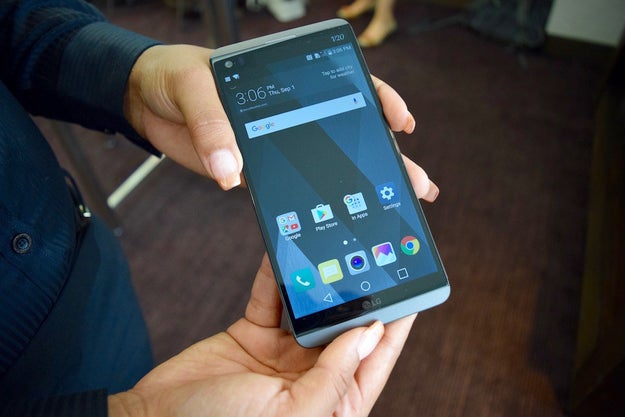
Today, LG announced its new ~very premium~ phone, the LG V20. It’s the first device to come with Android 7.0 Nougat installed, ahead of Google’s own Nexus devices.

Today, LG announced its new ~very premium~ phone, the LG V20. It's the first device to come with Android 7.0 Nougat installed, ahead of Google's own Nexus devices.

Google typically ships the latest version of its Android operating system with the Nexus line, under which it partnered with hardware makers like Huawei and LG, but rumor has it that the company is killing the Nexus brand in favor, perhaps, of a “Google” or “Pixel” moniker.

In any case, Android 7.0 has officially launched for existing Nexus devices, and the LG V20 will be the first new phone to have it. The phone Google is working on won&;t be announced until early October.

Here&039;s a first impressions hands-on with the brand, spankin&039; new LG V20, a device that was designed with a focus on high-fidelity video and audio recording tools – and intended to look and feel fancy AF.

Nicole Nguyen / BuzzFeed

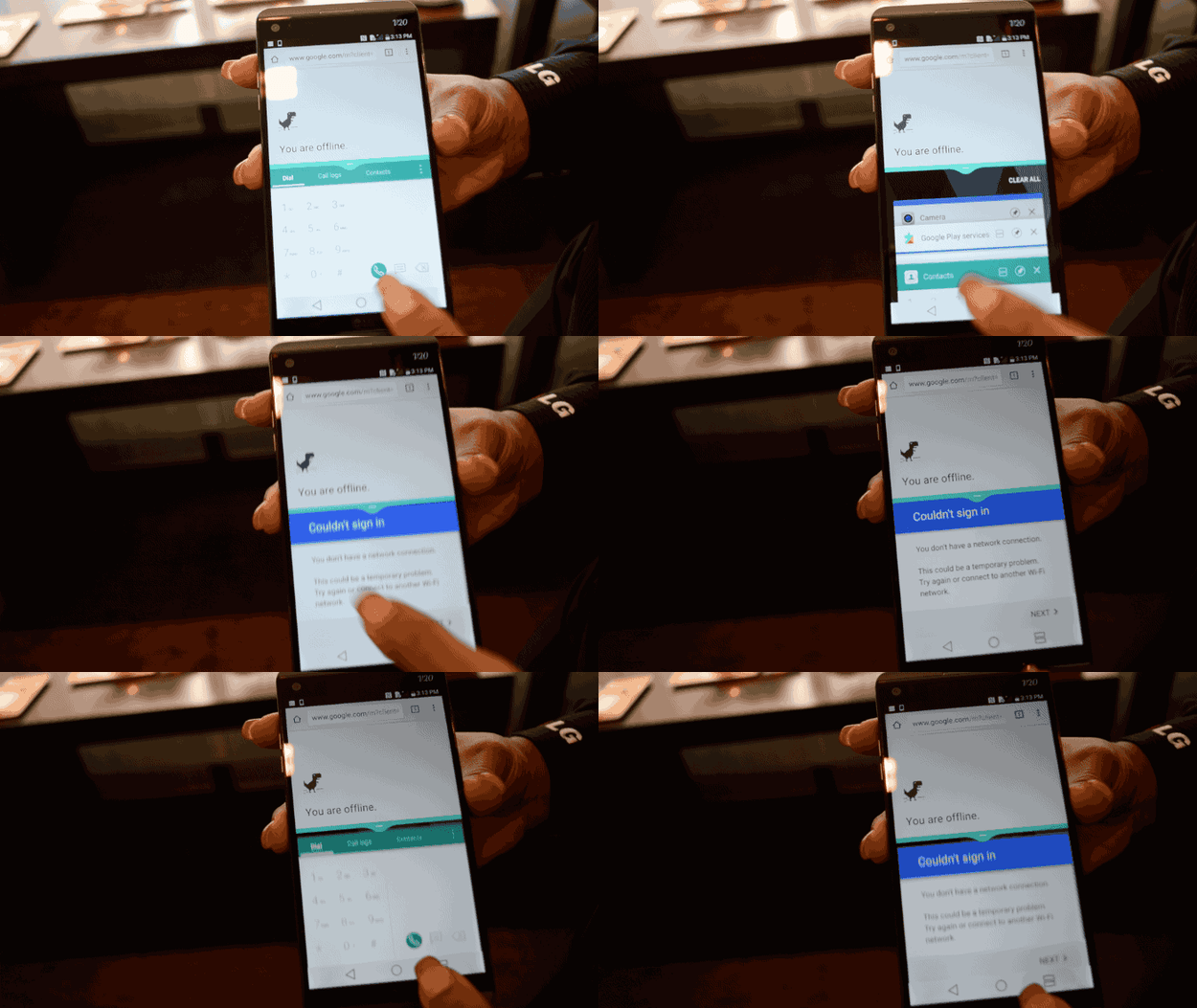
Android 7.0 has a lot of great features, including multi-window split screen support.

Android 7.0 has a lot of great features, including multi-window split screen support.

The LG V20 phone I tried wasn&039;t set up or connected to the Internet, so it couldn&039;t really show me anything, but setting up the split screen and quickly switching apps was super easy.

Other notable Android N features are:

  • A ton of new emojis, including multiple skin tones.
  • More battery efficiency and power saving features.
  • New custom quick settings that appear when you first pull down the notification shade.
  • Quick replies to texts and emails from the notification shade.
  • A new data saver that limits how much cell data apps in the background can access
  • Being able to change the size of the font, icons, and interface.
  • Direct boot, which loads apps before you unlock your device for faster startup.

Nicole Nguyen / BuzzFeed

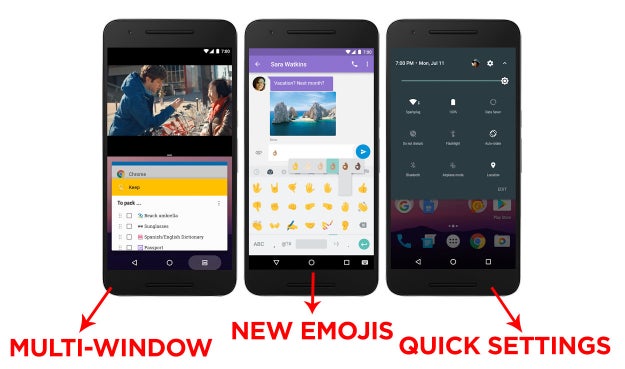
Here’s what the multi-window, new emojis, and custom quick settings are supposed to look like.

Here's what the multi-window, new emojis, and custom quick settings are supposed to look like.

android.googleblog.com

Android N runs alongside LG’s own software, LG UX 5.0.

Android N runs alongside LG's own software, LG UX 5.0.

LG’s software re-introduces the much-requested app tray that was removed in the previous version and incorporates Material Design concepts, a minimalist design language developed as a guide for developers by Google.

Nicole Nguyen / BuzzFeed


View Entire List ›

Quelle: <a href="Everything You Need To Know About The First Phone With Android N“>BuzzFeed

Getting started with Cloud Tools for Visual Studio

Posted by Mete Atamel, Developer Advocate

If you’re a .NET developer, you’re used to managing cloud resources right inside Visual Studio. With the recent release of our Cloud Tools for Visual Studio, you can also manage your Google Cloud Platform resources from Visual Studio.

Cloud Tools is a Visual Studio extension. It has a quickstart page with detailed information on how to install the extension, how to add your credentials and how to browse and manage your cloud resources. In this post, I want to highlight some of the main features and refer to individual how-to pages for details.

Installation
You can install the extension in two ways: From inside Visual Studio, you can either go to “Tools” and then “Extension and Updates,” or you can install it from Visual Studio Gallery. The installation section of quickstart page has the installation details.

Authentication
Once installed, you can find “Google Cloud Tools” under “Tools.” “Google Cloud Explorer” is the main tool to browse and manage cloud resources, but before you can use it, you need to add your credentials to Visual Studio.

To add your credentials, select “Manage Accounts.” This opens a new browser window, where you log into your cloud account and add your credentials to Visual Studio.

Google Cloud Explorer
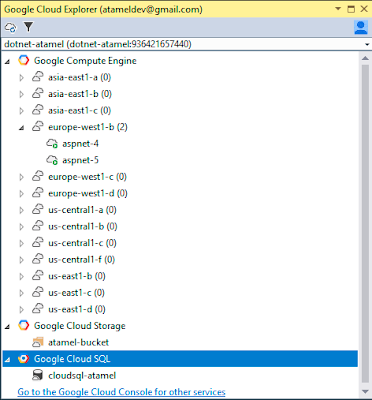
Google Cloud Explorer is a browser for Google Cloud Resources. Once you’ve selected your project from the top dropdown, it displays three different types of cloud resources: Google Compute Engine, Google Cloud Storage, and Google Cloud SQL.

(click to enlarge)

In the Compute Engine list, you can see all your Windows and Linux instances. If you right-click on the instances, you can perform administrative tasks such as opening terminal sessions or resetting Windows usernames and passwords. You can also create an ASP.NET instance (a Windows instance with the ASP.NET stack installed) by right-clicking on the Compute Engine list item. It directs you to Google Cloud Launcher to install the instance, into which you can then deploy your ASP.NET app.

In the Cloud Storage list, you can see all the Cloud Storage buckets you have in your project and navigate to Google Cloud Console to browse the contents of the bucket. Browsing Storage Buckets documentation has more details.

The Cloud SQL list shows all your Cloud SQL instances, and you can easily create data connections to those instances as explained in Browsing Cloud SQL Instances documentation.

Hopefully, this gave you a high level overview of the Cloud Tools for Visual Studio.

Give it a try and let us know in the comments what you think. Any issues? Report them here, or visit our GitHub page if you want to contribute.

“Interested in helping us improve the Google Cloud User Experience? Click here!”
Quelle: Google Cloud Platform

Azure Networking Fridays with the Azure Black Belt Team

You are invited to join us for Azure Networking Fridays!

This hour long session will occur every other Friday this fall. It is open to all customers and partners to learn more about Azure Networking (including ExpressRoute and Virtual Networking) and how to plan and design their connectivity to the Microsoft Cloud.

There will be an open Q&A session at the end where customers can ask the experts. Content and partner speakers will vary for each session but the general agenda is as follows:

Azure Networking fundamentals (10 minutes)
Deep dive topic of the week (15-20 minutes)
Partner spotlight of the week (15-20 minutes)
Q&A

We’re kicking off the series Friday, September 16, 2016.

Join the Skype Meeting and make sure you don’t miss out on future sessions by adding this the series to your Outlook calendar (download ICS here).
Quelle: Azure