Running Tempest on RDO OpenStack Newton

Tempest is a set of integration tests to run against an OpenStack cluster.

What does RDO provides for Tempest?

RDO provides three packages for running tempest against any OpenStack installation.

python-tempest : It can be used as a python library, consumed as a dependency for out of tree tempest plugins i.e. for horizon and designate tempest plugins.
openstack-tempest : It provides python tempest library and required executables for running tempest.
openstack-tempest-all : It will install openstack-tempest as well as all the tempest plugins on the system.

Deploy packstack using latest RDO Newton packages

Roll out a vm of CentOS 7, Follow these steps:

Install rdo-release-newton rpm

# yum -y install https://rdoproject.org/repos/openstack-newton/rdo-release-newton.rpm

Update your CentOS vm and perform reboot.

# yum -y update

Install openstack-packstack

# yum install -y openstack-packstack

Run packstack by enabling RDO GA testing repo:

# packstack –enable-rdo-testing=y –allinone

Once packstack installation is done, we are good to go ahead.

Install tempest and required tempest plugins

Install tempest

# yum install openstack-tempest

Install tempest plugins based on the openstack services installed and configured on deployment.

Packstack installs by default horizon, nova, neutron, keystone, cinder, swift, glance, ceilometer, aodh and gnocchi.
To find out what are the openstack components installed, just do a rpm query:

# rpm -qa | grep openstack-*

OR you can use openstack-status command for the same.
Just grab the tempest plugins of these services and install it.

# yum install python-glance-tests python-keystone-tests python-horizon-tests-tempest
python-neutron-tests python-cinder-tests python-nova-tests python-swift-tests
python-ceilometer-tests python-gnocchi-tests python-aodh-tests

To find what are tempest plugins installed:

# tempest list-plugins

Once done, you are ready to run tempest.

Configuring and Running tempest

source admin credentials and switch to normal user

# source /root/keystonerc_admin

# su <user>

Create a directory from where you want to run tempest

$ mkdir /home/$USER/tempest; cd /home/$USER/tempest

Configure the tempest directory

$ /usr/share/openstack-tempest-*/tools/configure-tempest-directory

Auto generate tempest configuration for your deployed openstack environment

$ python tools/config_tempest.py –debug identity.uri $OS_AUTH_URL
identity.admin_password $OS_PASSWORD –create

It will automatically create all the required configuration in etc/tempest.conf

To list all the tests

$ testr list-tests

OR

$ ostestr -l

To run tempest tests:

$ ostestr

For running api and scenario tests using ostestr and prints the slowest tests after test run

$ ostestr –regex ‘(?!.*[.*bslowb.*])(^tempest.(api|scenario))’

To run specific tests:

$ python -m testtools.run tempest.api.volume.v2.test_volumes_list.VolumesV2ListTestJSON

OR

$ ostestr –pdb tempest.api.volume.v2.test_volumes_list.VolumesV2ListTestJSON

ostestr –pdb will call python -m testtools.run under the hood.

Thanks to Luigi, Steve, Daniel,
Javier, Alfredo, Alan for the review.

Happy Hacking!
Quelle: RDO
Introducing Docker for Windows Server 2016

Today, Microsoft is announcing general availability of Windows Server 2016 at the Ignite conference in Atlanta. For Windows developers and IT-pros, the most exciting new Windows feature is containers, and containers on Windows Server 2016 are powered by Docker.
The first version of Docker was released in 2013, and in the 3 years since launch, Docker has completely transformed how Linux developers and ops build, ship and run apps. With Docker Engine and containers now available natively on Windows, developers and IT-pros can begin the same transformation for Windows-based apps and infrastructure and start reaping the same benefits: better security, more agility, and improved portability and freedom to move on-prem apps to the cloud.
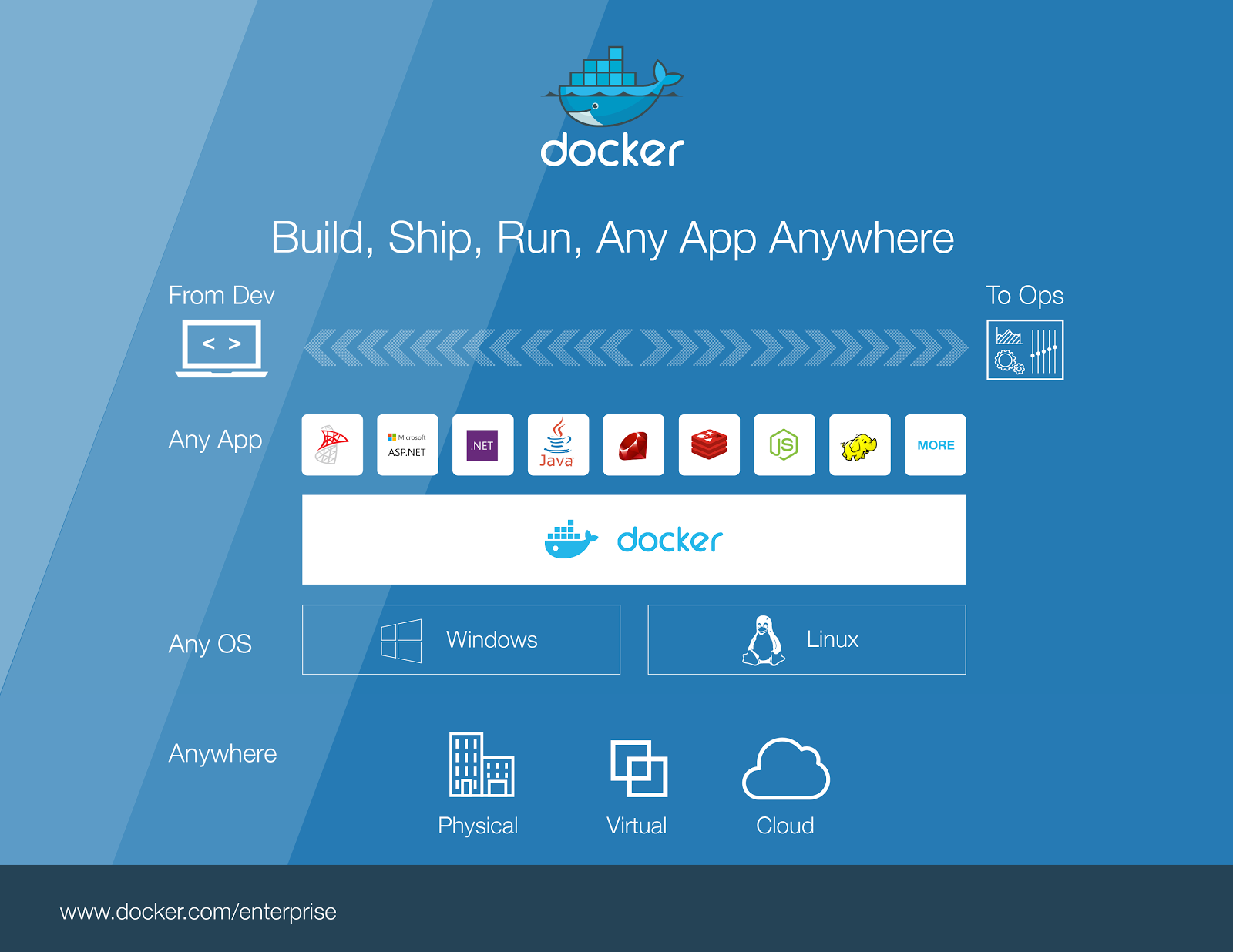
For developers and IT-pros that build and maintain heterogenous deployments with both Linux and Windows infrastructure, Docker on Windows holds even greater significance: The Docker platform now represents a single set of tools, APIs and image formats for managing both Linux and Windows apps. As Linux and Windows apps and servers are dockerized, developers and IT-pros can bridge the operating system divide with shared Docker terminology and interfaces for managing and evolving complex microservices deployments both on-prem and in the cloud.

Running Containers on Windows Server
Docker running containers on Windows is the result of a two-year collaboration between Microsoft that involved the Windows kernel growing containerization primitives, Docker and Microsoft collaborating on porting the Docker Engine and CLI to Windows to take advantage of those new primitives and Docker adding multi-arch image support to Docker Hub.
The result is that the awesome power of docker run to quickly start a fresh and fully isolated container is now available natively on Windows:
PC C:> docker run -ti microsoft/windowsservercore powershell
Windows PowerShell

Copyright (C) 2016 Microsoft Corporation. All rights reserved.

PS C:>
The kernel containerization features are available in all versions of Windows Server 2016, and are also on Windows 10 systems with the Anniversary Update, and the Windows-native Docker daemon runs on both Windows Server 2016 and Windows 10 (although only containers based on Windows Server build and run on Windows 10).
docker run on Windows comes with the same semantics as on Linux: Full process isolation and sandboxed filesystem (and Windows Registry!) with support for layering changes. Each container sees a clean Windows system and cannot interfere with other processes (containerized or not) on the system.
For example, two dockerized apps using different Internet Information Services (IIS) versions and different .NET frameworks can co-exist merrily on the same system. They can even write to their respective filesystems and registries without affecting each other.
With containerization, Windows IT-pros get most of the isolation and release-artifact-stability benefits of VMs, without the resource overhead and lost agility inherent in hardware virtualization.
Similar to how containers on Linux can run with different security profiles, containers on Windows run in one of two isolation modes:

Windows Server Containers use the same shared-kernel process-isolation paradigm known from Linux. Since containers run as normal (but isolated) processes, startup is fast and resource overhead is minimal.
With Hyper-V isolation, container processes run inside a very minimal hypervisor created during container start. This yields potentially better isolation at the cost of slower startup and some resource overhead.

Isolation can be set with a simple switch passed to docker run:
docker run –isolation=hyperv microsoft/nanoserver
As long as the underlying host supports the requested isolation mode, any Windows container image can be run as either a hyper-v or server container and a container host can run both side by side. Container processes are oblivious to the isolation mode they run in, and the Docker control API is the same for both modes.
This makes isolation mode not generally a developer concern and developers should use the default or what’s convenient on their system. Isolation mode does give IT-pros options when choosing how to deploy containerized apps in production.
Also note that, while Hyper-V is the runtime technology powering hyper-v isolation, hyper-v isolated containers are not Hyper-V VMs and cannot be managed with classic Hyper-V tools.
For readers interested in details of how containers are implemented on Windows, John Starks’ black belt session at DockerCon ‘16 is a great introduction.

Building Windows Container Images
Thanks to layering improvements to the Windows Registry and filesystem, docker build and Dockerfiles are fully supported for creating Windows Docker images. Below is an example Windows Dockerfile that Stefan Scherer has proposed for the Node.js official Docker library image. It can be built on Windows with docker build:
FROM microsoft/windowsservercore
ENV NPM_CONFIG_LOGLEVEL info
ENV NODE_VERSION 4.5.0
ENV NODE_SHA256 16aab15b29e79746d1bae708f6a5dbed8ef3c87426a9408f7261163d0cda0f56
RUN powershell -Command
$ErrorActionPreference = ‘Stop’ ;
(New-Object System.Net.WebClient).DownloadFile(‘https://nodejs.org/dist/v%NODE_VERSION%/node-v%NODE_VERSION%-win-x64.zip’, ‘node.zip’) ;
if ((Get-FileHash node.zip -Algorithm sha256).Hash -ne $env:NODE_SHA256) {exit 1} ;
Expand-Archive node.zip -DestinationPath C: ;
Rename-Item ‘C:node-v%NODE_VERSION%-win-x64′ ‘C:nodejs’ ;
New-Item ‘%APPDATA%npm’ ;
$env:PATH = ‘C:nodejs;%APPDATA%npm;’ + $env:PATH ;
[Environment]::SetEnvironmentVariable(‘PATH’, $env:PATH, [EnvironmentVariableTarget]::Machine) ;
Remove-Item -Path node.zip
CMD [ “node.exe” ]
Note how PowerShell is used to install and setup zip files and exes: Windows containers run Windows executables compiled for Windows APIs. To build and run a Windows container, a Windows system is required. While the Docker tools, control APIs and image formats are the same on Windows and Linux, a Docker Windows container won’t run on a Linux system and vice-versa.
Also note that the starting layer is microsoft/windowsservercore. Starting FROM scratch is not an option when creating Windows container images. Instead, images are based on either microsoft/windowsservercore or microsoft/nanoserver.
The Windows Server Core image comes with a mostly complete userland with the processes and DLLs found on a standard Windows Server Core install. With the exception of GUI apps and apps requiring Windows Remote Desktop, most apps that run on Windows Server can be dockerized to run in an image based on microsoft/windowsservercore with minimal effort. Examples include Microsoft SQL Server, Apache, Internet Information Services (IIS) and the full .NET framework.
This flexibility comes at the cost of some bulk: The microsoft/windowsservercore image takes up 10GB. Thanks to Docker’s highly efficient image layering, this is not a big problem in practice. Any given Docker host only needs to pull the base layer once, and any images pulled or built on that system simply reuse the base layer.
The other base layer option is Nano Server, a new and very minimal Windows version with a pared-down Windows API. Lots of software already runs on Nano Server, including IIS, the new .NET Core framework, Node.js and Go. And the Nano Server base image is an order of magnitude smaller than Windows Server Core, meaning it has less dependencies and surface area to keep updated. Nano Server is an exciting development, not only as a base for minimal containers that build and boot quickly, but also as a Minimalist Operating System that makes for a great container host OS running just the Docker daemon and containers, and nothing else.
With the choice of Windows Server Core and Nano Server, developers and IT-pros can opt to lift-and-shift existing Windows-based apps into Server Core containers or adopt Nano Server for greenfield development or incrementally as part of breaking monolithic apps into microservices components.
Docker is working with Microsoft and the community to build container images based on both Windows Server Core and Nano Server. Golang, Python and Mongo are available as official Docker images (more are on their way), and Microsoft also maintains a set of very popular sample images.
Summary
Today’s announcement of Docker Engine building, running and managing containers on Windows is the fruit of years of labor by teams at both Microsoft and Docker and by the Docker community. We’re incredibly proud of the work we’ve done with Microsoft to bring the benefits of containerization to Windows developers and IT-pros, and we’re excited about the prospect of getting Windows and Linux technologists building, shipping and running apps together with a common set of tools and APIs.
Here are some resources to help you get started

Sign up to be notified of GA and the Docker Datacenter for Windows Beta
Register for a webinar: Docker for Windows Server
Learn more about the Docker and Microsoft partnership

The post Introducing Docker for Windows Server 2016 appeared first on Docker Blog.
Quelle: https://blog.docker.com/feed/

Docker Announces Commercial Partnership with Microsoft to Double Container Market by Extending Docker Engine to Windows Server

With industry analysts declaring Windows Server with more than 60% of the x86 server market, and citing Microsoft Azure as the fastest-growing public cloud, it comes as no surprise that Microsoft, even at its current scale, is further extending its leadership as a strategic, trusted partner to enterprise IT.
It is this industry leadership that catalyzed our technical collaboration in the Docker open source project back in October 2014, to jointly bring the agility, portability, and security benefits of the Docker platform to Windows Server.  After two years of joint engineering, we are excited to unveil a new, commercial partnership to extend these benefits for both Windows developers targeting Windows Server and enterprise IT professionals.
Specifically, the commercial partnership entails:

The Commercially Supported Docker Engine aka “CS Docker Engine”, Docker, Inc.’s tested, validated, and supported package of Docker Engine, will be available to Windows Server 2016 customers at no additional cost
Microsoft will provide Windows Server 2016 customers enterprise support for CS Docker Engine, backed by Docker, Inc
Docker and Microsoft will jointly promote Docker Datacenter to enable IT Pros to secure the Windows Server software supply chain and manage containerized Windows Server workloads, whether on-prem, in the cloud, or hybrid.

These fruits of this partnership for the first time offer enterprise IT professionals with a single platform for both Windows and Linux applications on any infrastructure, whether bare metal, virtualized, or cloud.
 

CS Docker Engine and Docker Datacenter for Windows Server represent a major addition that complements several other joint initiatives as depicted above.
 

For developers, the integration of Visual Studio Tools for Docker and Docker for Windows provides complete desktop development environments for building Dockerized Windows apps;
To jumpstart app development, Microsoft has contributed Windows Server container base images and apps to Docker Hub;
For IT pros, Docker Datacenter will be designed to manage Windows Server environments in addition to the Linux environments Datacenter already manages.

Availability
Windows Server 2016 will be generally available in October, when Windows Server 2016 customers will be able to download the first version of the CS Docker Engine. Docker Datacenter for managing Windows Server containerized workloads will be available shortly thereafter.  While the announcements today represent another significant milestone in our partnership, Docker and Microsoft are just getting started.
Check out the below to learn more!

Learn more about Docker on Windows Server
Sign up to be notified of GA and the Docker Datacenter for Windows Beta
Register for a webinar: Docker for Windows Server
Learn more about the Docker and Microsoft partnership

The post Docker Announces Commercial Partnership with Microsoft to Double Container Market by Extending Docker Engine to Windows Server appeared first on Docker Blog.
Quelle: https://blog.docker.com/feed/